The World Tool
When working with multiple maps on a project scale, it can get tedious to navigate between them all because there are so many.
Fortunately for us, there's a tool in Tiled for viewing all our maps in a single interconnected view. You've read the section title, so you'll know that this is called the World tool!
Preface
This feature does not impact your project inside Kristal.
Rather, this is a handy utility that makes it easier to use the Tiled editor.
So, while you don't need to know this tool for any overworld functionality in Kristal, it might be worth checking out anyway!
Opening a World
The World tool works with special world files. You don't have to worry about creating one, as Kristal includes one by default in every project.
This world file sits in scripts/world/:
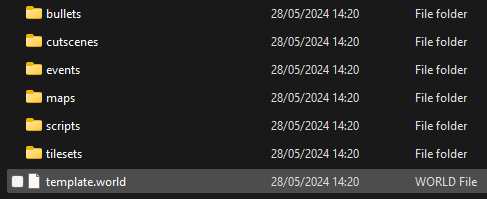
In Tiled, you can select World > Load World... from the top ribbon and then open this file.
The two template maps, room1 and room2, will appear in this world if they're present in your project.
There's a good chance you've already deleted these (which is perfectly fine), but this is what it would look like if they were present:
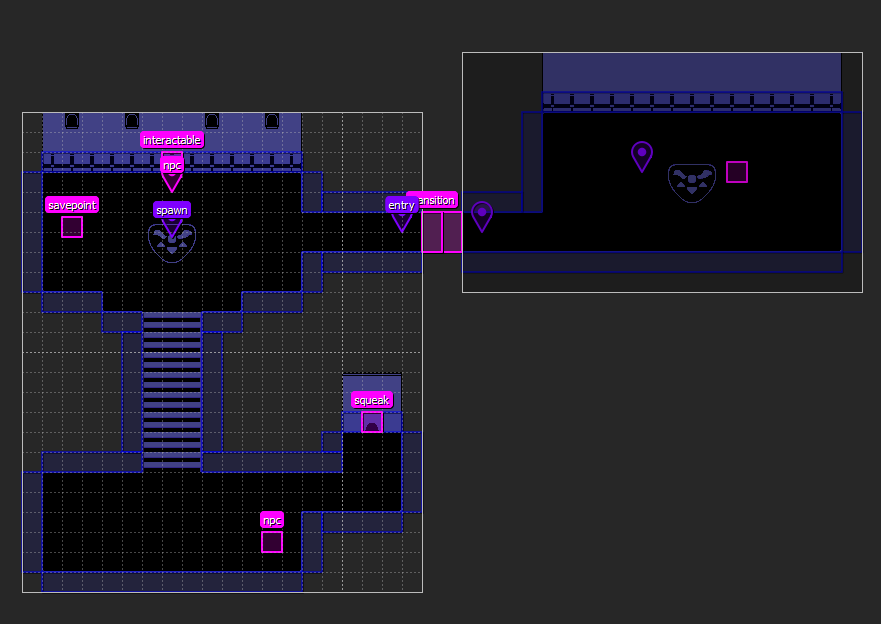
The maps themselves remain separate, so you still need to save and export them individually and keep objects in the correct map.
Clicking inside the boundary of another map puts it into focus (it makes it the map we are editing).
Adding Maps to a World
Of course, we need to add our own maps to the world for it to be useful.
Open up any two maps from your project. It would be best to choose two that are directly connected by a transition for layout purposes.
With our world loaded, the World Tool has become selectable. On the map toolbar, the world tool resembles a globe with an arrow through it.
If we select the world tool, then some new options appear on the right side of the toolbar. We want to choose the green asterisk-looking one:

This should show a dropdown offering you to add the current map to the world. Select that option, and...!
Oh. We only have one map in our world, so nothing changed. Let's do the process again with our second map.
This time, the two maps should appear together in the main view of Tiled.
Tiled will try to align the maps, but since it has no concept of transitions they'll be aligned completely wrong.
While the world tool is still selected, you can rearrange the maps to fix this!
We recommend lining up your maps so that the edges of every paired transition connect, where possible.
Avoid overlapping the transitions so you can still clearly tell which one you're editing. If we go back to the example from earlier:
That's pretty much all there is to using the world tool. You can repeat this process for every map in your project to have them all appear together!
If you need to remove a map from the world, you can use the remove map tool (which is the squished green diamond tool).